With Alfresco 5.2 we are introducing Alfresco Search Services and Solr 6.3, read more about Solr 6.3 and the new search features here.
In this post we'll look in more depth at using SSL with Solr 6. If you haven't already, see this post for more info on installing Solr 6 without SSL.
Introduction to SSL
HTTPS provides over-the-wire encryption and a means to secure access to Alfresco Search Services. Only those clients and applications that have an appropriate certificate can get access. See https://en.wikipedia.org/wiki/HTTPS for more details. It may use SSL or its successor TLS (SSL is sometimes used as a synonym for HTTPS).
You may choose to secure Alfresco Search Services in other ways. This post will guide you through setting up Alfresco One 5.2 with "SSL" enabled. Access to the Alfresco APIs by which Solr builds its index will be secured (URLs like repo/api/solr/*), access to the Solr 4 web application will be secure (URLS like solr4/*), and access to the Solr 6 application (URLS like localhost:8983/solr/*) will be secured.
In addition, Solr 6 supports sharded indexes with "SSL" (which was not possible with Solr 4). Once secured you'll need to install a certificate on your browser to gain access to the protected URLs. You should generate your own unique certificates. In this task we focus on what to do after you have generated your own keys, using the example well-known certificate that comes with the installer. Using the "default" certificate will provide encryption but not authentication.
The steps below describe how to install Alfresco Search Services over HTTPS protocol.
Install and prepare your Alfresco One 5.2 installation
You can use your existing Alfresco One 5.2 installation or start a new one from scratch (see this post for more info on installing Solr 6). In this paragraph we'll see how to prepare your Alfresco installation.
- Start Alfresco, install a license that supports clustering
- Validate that you can access the links below:
http://<alfresco_ip>:8080/alfresco/service/enterprise/admin/admin-flocs
https://<alfresco_ip>:8443/alfresco/service/enterprise/admin/admin-flocs
- Validate that you can't access the links below:
http://<alfresco_ip>:8080/solr4
https://<alfresco_ip>:8443/solr4
http://<alfresco_ip>:8080/alfresco/s/api/solr/transactions
https://<alfresco_ip>:8443/alfresco/s/api/solr/transactions
- Install the browser certificate (see http://docs.alfresco.com/5.0/tasks/ssl-protect-solrwebapp.html). You should now be able to access the https URLs above.
- Disable Solr 4 tracking. Go to each Solr 4 core and edit <core>/conf/solrcore.properties to set:
enable.alfresco.tracking=false
Install Alfresco Search Services
Now that Alfresco One 5.2 is correctly installed and prepared, we're going to install Alfresco Search Services 1.0.
- Download Alfresco Solr 6 distribution from here, unpack it, and move it to your preferred location.
- Prepare the keystore by creating the folder
<solr6>/solrHome/keystore. - Into this new folder copy the
ssl.repo.client.keystore and ssl.repo.client.truststore files from <alfresco-one-5-2>\solr4\templates\rerank\conf. - Update the SSL properties in
<solr6>/solr.in.sh (if you're in a Linux based platform) as described below.SOLR_SSL_KEY_STORE=<solr>/keystore/ssl.repo.client.keystore
SOLR_SSL_KEY_STORE_PASSWORD=kT9X6oe68t
SOLR_SSL_TRUST_STORE=<solr>/keystore/ssl.repo.client.truststore
SOLR_SSL_TRUST_STORE_PASSWORD=kT9X6oe68t
SOLR_SSL_NEED_CLIENT_AUTH=true
SOLR_SSL_WANT_CLIENT_AUTH=false
If you are using a Windows based platform the file will be called <solr6>\solr.in.cmd and the content should be updated as described below.set SOLR_SSL_KEY_STORE=<solr>\keystore\ssl.repo.client.keystore
set SOLR_SSL_KEY_STORE_PASSWORD=kT9X6oe68t
set SOLR_SSL_TRUST_STORE=<solr>\keystore\ssl.repo.client.truststore
set SOLR_SSL_TRUST_STORE_PASSWORD=kT9X6oe68t
set SOLR_SSL_NEED_CLIENT_AUTH=true
set SOLR_SSL_WANT_CLIENT_AUTH=false
- Update <solr6>/solrHome/conf/shared.properties as described below.
// Enabling the suggestion as with Solr 4 (Suggestion is disabled by default for SOLR 6).
alfresco.suggestable.property.0={http://www.alfresco.org/model/content/1.0}name
alfresco.suggestable.property.1={http://www.alfresco.org/model/content/1.0}title
alfresco.suggestable.property.2={http://www.alfresco.org/model/content/1.0}description
alfresco.suggestable.property.3={http://www.alfresco.org/model/content/1.0}content

// Enabling camelCaseSearch support in all fields as Solr 4.
alfresco.cross.locale.datatype.0={http://www.alfresco.org/model/dictionary/1.0}text
alfresco.cross.locale.datatype.1={http://www.alfresco.org/model/dictionary/1.0}content
alfresco.cross.locale.datatype.2={http://www.alfresco.org/model/dictionary/1.0}mltextIf you are installing Solr on the same host then the default solr.host, solr.port, solr.baseulr will be correct.
Starting Alfresco Search Services
In this paragrah we are going to see how to setup and start the installed Alfresco Search Services 1.0.
See the screenshot below for how the administration page looks like.
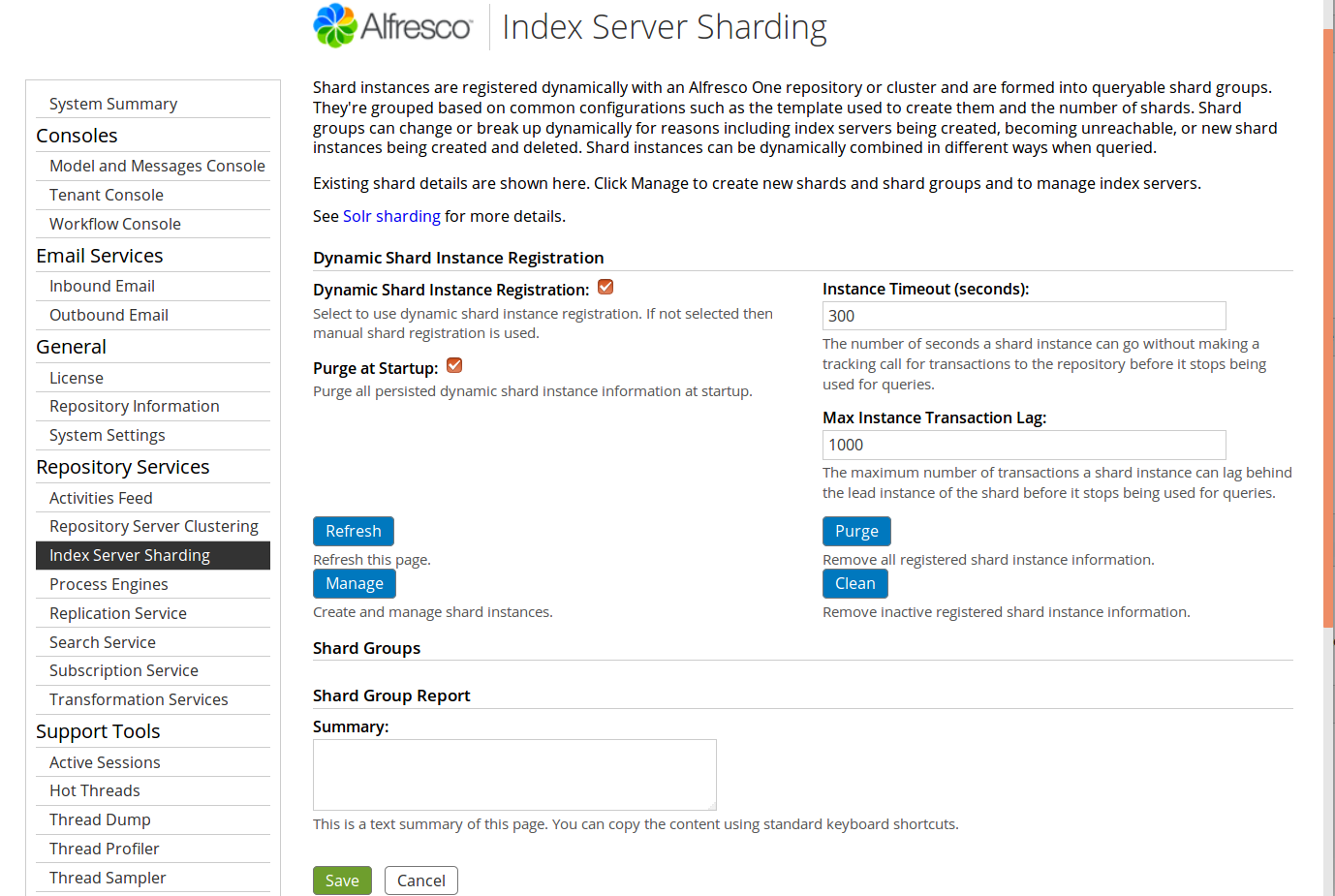
- Click Manage to create an unsharded Archive index.
- Enter the details for your Solr 6 server (
<span style="border: 0px; font-weight: inherit;"><a href="https://" rel="nofollow noopener noreferrer" style="border: 0px; font-weight: inherit; padding: 0px calc(12px + 0.35ex) 0px 0px; color: #000000;" target="_blank">https://</a></span><span style="border: 0px; font-weight: inherit;"><span style="border: 0px; font-weight: inherit;"><s</span>olr_ip>:8983/solr</span>) in the New Index Server box and click Add. - Fill in the details as shown in the following screenshot. Click
Create Shard Group when you're done.
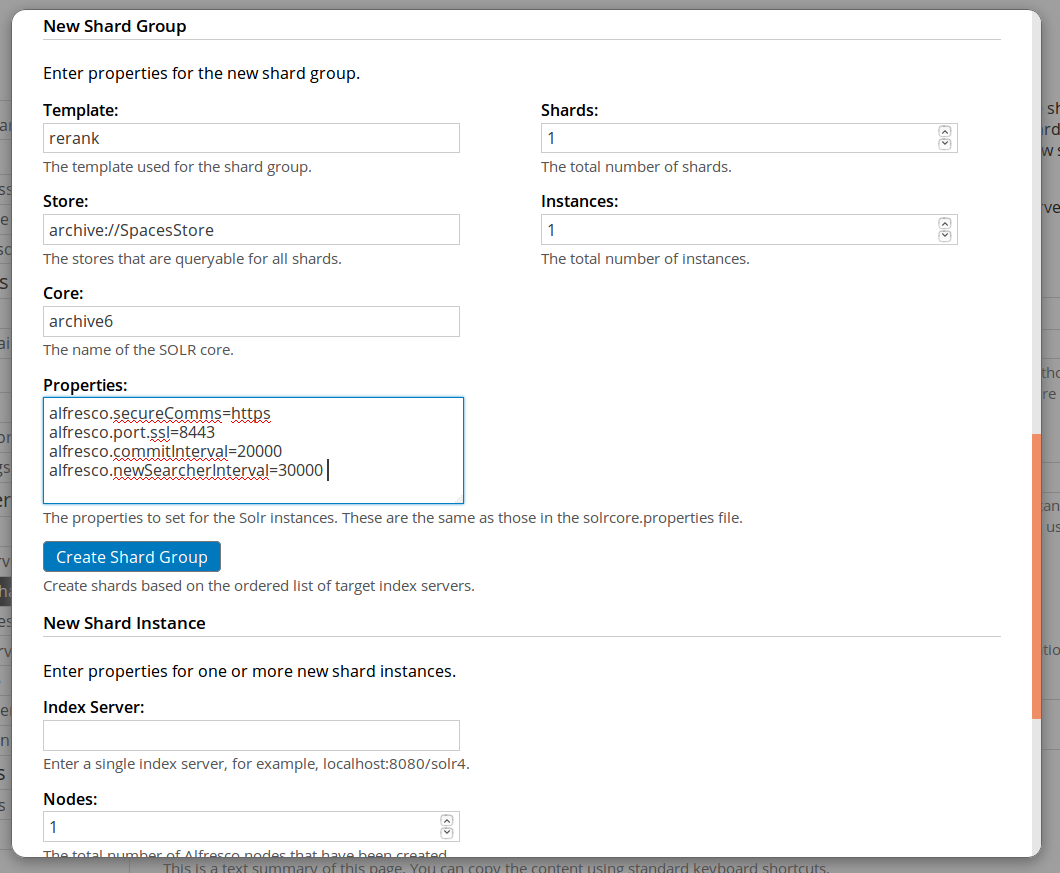
- Once the submission as been completed, the index will appear in the shard view as they start to track.
- Click Manage to create a sharded Alfresco index.
- Enter the details for your Solr 6 server (
<span style="border: 0px; font-weight: inherit;"><a href="https://" rel="nofollow noopener noreferrer" style="border: 0px; font-weight: inherit; padding: 0px calc(12px + 0.35ex) 0px 0px; color: #000000;" target="_blank">https://</a></span><span style="border: 0px; font-weight: inherit;"><span style="border: 0px; font-weight: inherit;"><so</span>lr_ip>:8983/solr</span>) in the New Index Server box and click Add. If you created the archive index above the index server may already be listed. - Please fill in the form in the way the screenshot shows. Fill in the details as shown in the following screenshot. Click
Create Shard Group when you're done.
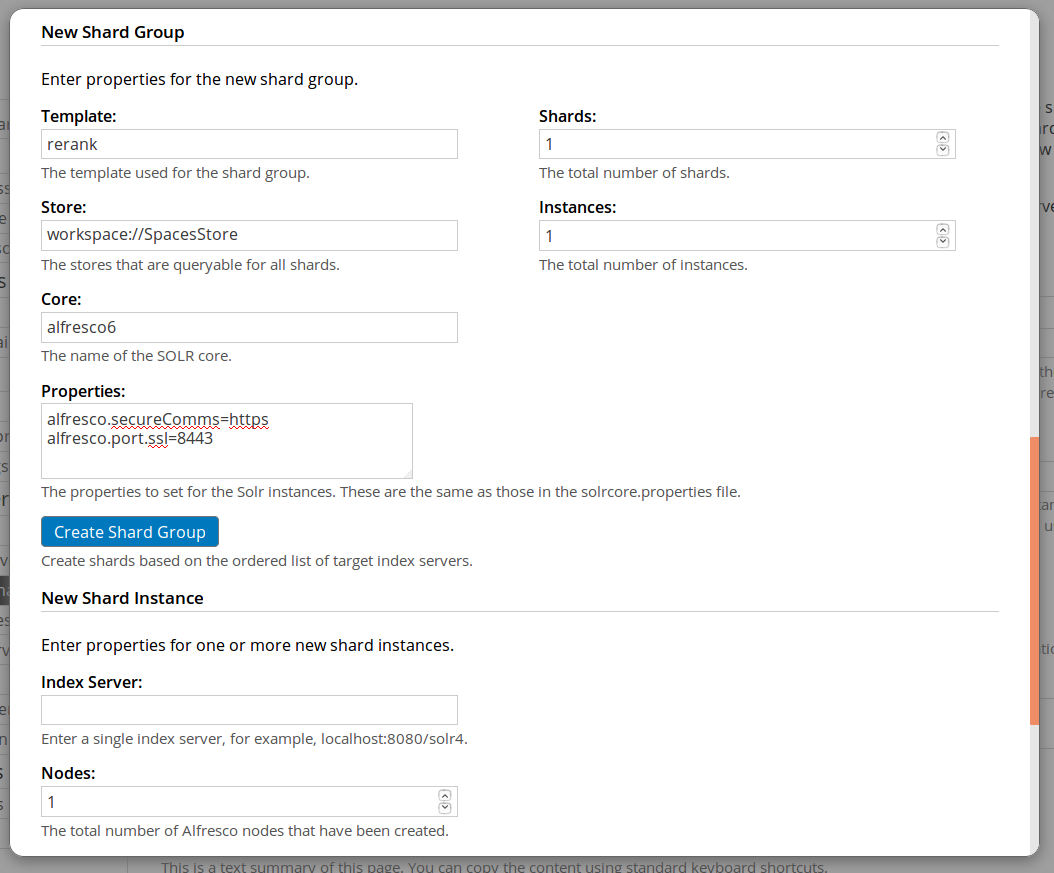
- Once the submission as been completed, the index will appear in the shard view as they start to track.
- Check in the Solr administration console that both the indexes are correctly listed. See the following screenshot for how the console should look.
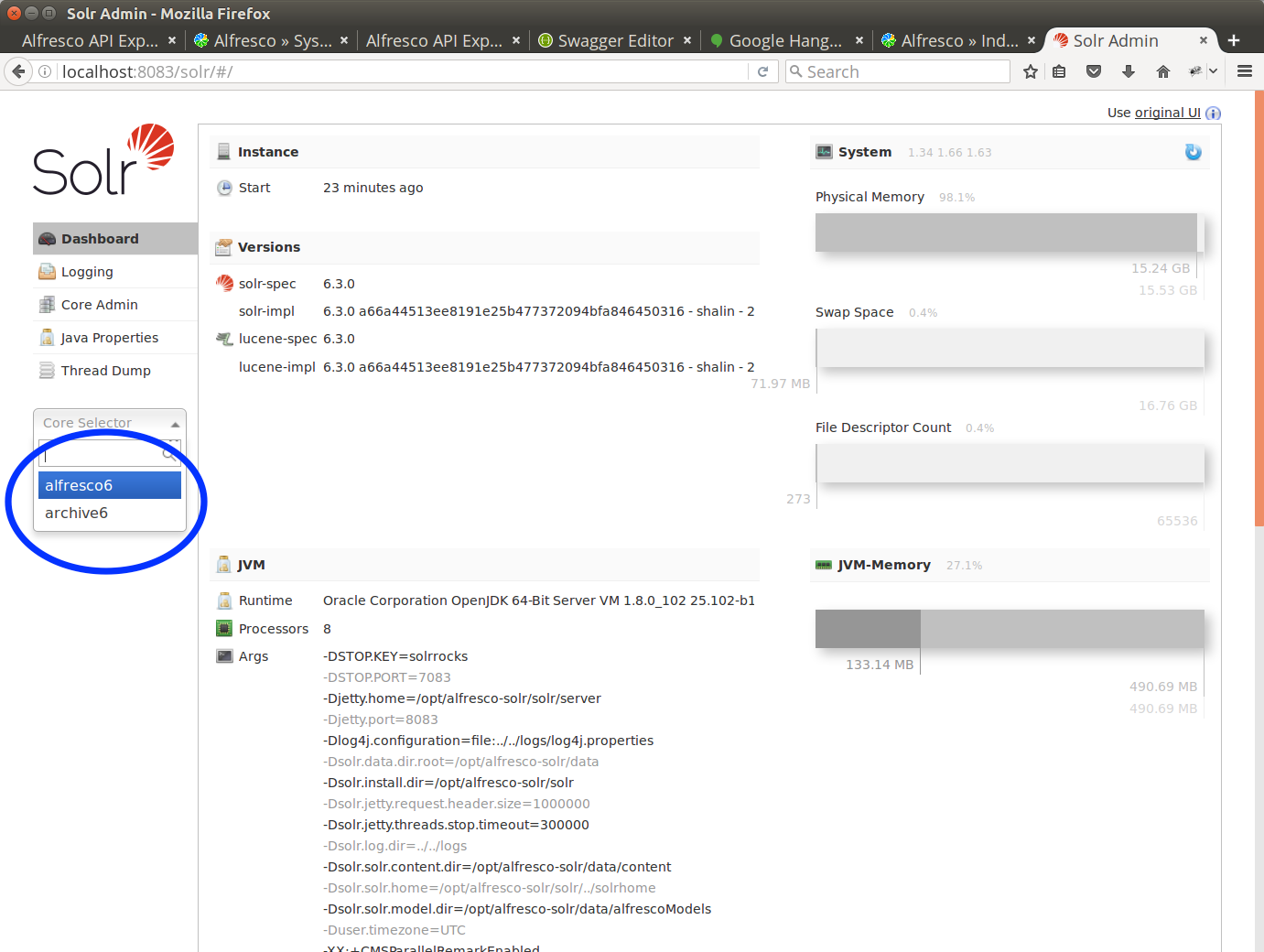
Validate Search over HTTPS
Now that the Alfresco Search Services is up and running with the correct settings, let's see how to validate the searches over HTTPS.
- You can validate searches executing one (or more) searches over Alfresco using Alfresco Share.
Please let us know how you get on, leave a comment or email harry.peek@alfresco.com.